

Time & Temperature on OLED Display
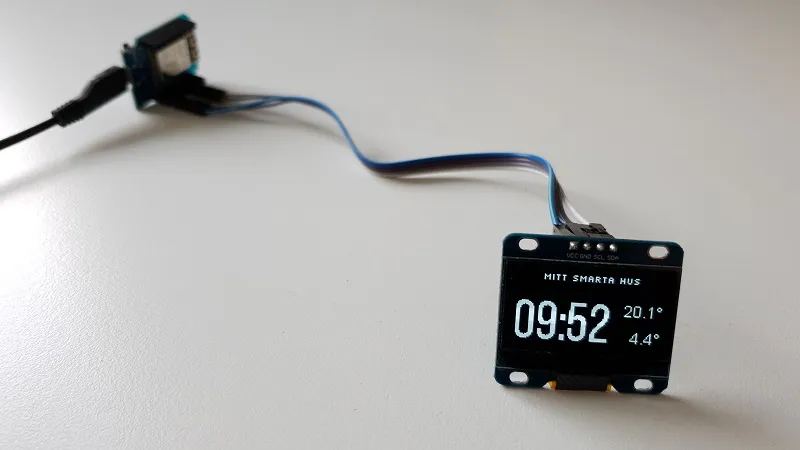
In this example I have used a SSD1306 OLED Display over I²C to show current time and two different temperature values from Home Assistant.
ESPHome has support for several different types of displays. The display used here is 1.3” with 128x64 monochrome pixels
(SH1106 128x64).
Hardware configuration
Section titled “Hardware configuration”Hardware is easy! Only four connections are needed:
VCC- Power (my display could use either 3.3V or 5V)GND- GroundSDA- Serial DataSCL- Serial Clock
WARNING
Ensure your display handles 5V if you use that.
Software configuration
Section titled “Software configuration”Getting Time
Section titled “Getting Time”Get the time from Home Assistant to sync the onboard real-time clock.
time: - platform: homeassistant id: esptimeGetting Temperature
Section titled “Getting Temperature”Next, we want to get one temperature sensor and the weather forecast imported from Home Assistant.
I named them inside_temperature and outside_temperature. You will use those references later.
By adding internal: true to the sensors they won’t be published back to Home Assistant.
sensor:  - platform: homeassistant    id: inside_temperature    entity_id: REPLACEME    internal: true
  - platform: homeassistant    id: outside_temperature    entity_id: REPLACEME    internal: true
text_sensor:  - platform: homeassistant    id: outside_temperature_unit    entity_id: REPLACEME    attribute: temperature_unit    internal: true
Define the Fonts
Section titled “Define the Fonts”- TrueType fonts are used. If you ever worked with fonts on microcontrollers you will love this!
- Save font files in
/config/esphomefolder where your ESPHome configuration is stored. - The
.ttfsuffix must be lowercase and of course match your filename. - Selection of fonts can be a little bit tricky for small sizes to look good. Experiment and share your findings in the comments below!
font:  - file: 'slkscr.ttf'    id: small    size: 8
  - file: 'BebasNeue-Regular.ttf'    id: medium    size: 48
- file: 'arial.ttf' id: large size: 14- (Optional) You can also use Google fonts with the
gfonts://scheme instead of including font files. - Find out more in the Font documentation.
font: - file: "gfonts://Silkscreen" id: small size: 10 - file: "gfonts://Roboto" id: large size: 24 - file: "gfonts://Silkscreen" id: medium size: 15Display Definition
Section titled “Display Definition”Now setup the communication to the display and start fill the screen with live data!
The reset_pin was not used in my hardware configuration as the display didn’t have that pin exposed.
Note your address and model might be different, use the scan option to find the address of your display.
i2c:  sda: GPIOXX  scl: GPIOXX  scan: false  # manually setting the frequency to a higher rate may avoid long component updates  # frequency: 300kHz
display:  - platform: ssd1306_i2c    model: "SH1106 128x64"    reset_pin: GPIOXX    address: 0x3C    lambda: |-      it.printf(0, 0, id(small), TextAlign::TOP_LEFT, "Time and");      it.printf(0, 12, id(small), TextAlign::TOP_LEFT, "Temperature");
      // Print time in HH:MM format      it.strftime(0, 60, id(large), TextAlign::BASELINE_LEFT, "%H:%M", id(esptime).now());
      // Print inside temperature (from homeassistant sensor)      if (id(inside_temperature).has_state()) {        it.printf(127, 23, id(medium), TextAlign::TOP_RIGHT , "%.1f", id(inside_temperature).state);      }
      // Print outside temperature (from homeassistant weather)      if (id(outside_temperature).has_state()) {        it.printf(127, 60, id(medium), TextAlign::BASELINE_RIGHT , "%.1f%s",                  id(outside_temperature).state, id(outside_temperature_unit).state.c_str());      }
Rendering
Section titled “Rendering”-
Alignment of text can use different reference points, for example
TOP_RIGHTorBASELINE_LEFT, which all are defined in API Reference: display_buffer.h. -
The property
has_state()on a sensor is useful as it can take some seconds to get the data from Home Assistant and you may not want to displayNan -
Refer to the rendering engine Display Rendering Engine for more features (it can draw lines and circles too!)
Add a Text-Based Sensor
Section titled “Add a Text-Based Sensor”Below follows an example that replaces the “Time and Temperature” top printout with the alarm status from the alarm component in Home Assistant.
text_sensor:  - platform: homeassistant    entity_id: alarm_control_panel.my_alarm_system    name: "Alarm State"    id: alarm_state
display:  - platform: ssd1306_i2c    model: "SH1106 128x64"    reset_pin: GPIOXX    address: 0x3C    lambda: |-      // Print "Alarm State: <state>" in top center      it.printf(64, 0, id(small), TextAlign::TOP_CENTER, "Alarm State: %s", id(alarm_state).state.c_str());